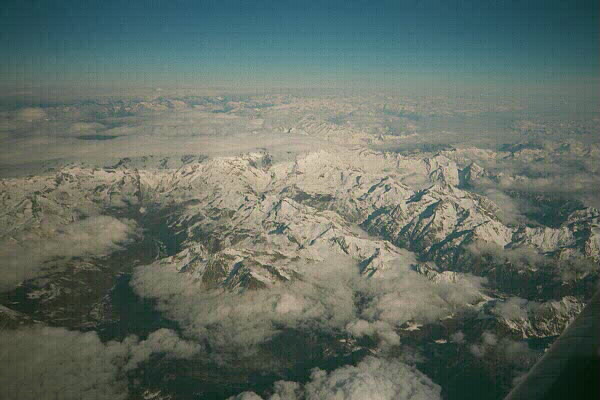
Graphics themselves are not actually inside a web page. The files containing graphics or images are separate, and the HTML IMG tag tells the browser to display the graphic at that point in the page. The easiest way to include, say, a photograph is to have it in a separate paragraph by itself, as in this example of the Alps.
Before we go any further, we should introduce the right way of doing an IMG tag, which you will see in the page source. After the IMG of the IMG tag comes a space and then src="alps.jpg". This means to tell the browser to look for a file named alps.jpg in the same folder as the web page that is asking for it.
After that comes alt="view of some Alps from an aeroplane". This ALT attribute, or alternative text as it is called, serves many useful purposes. In relatively recent browsers, if you put the cursor over the picture, that text will pop up in a little box. But more important, some people cannot see images, either because their browser simply doesn't display them, or because they have turned them off (helps quicker web surfing). In this case, if the browser can manage it, it will display the alternative text instead of the image. You should always put in ALT= in your IMG tags. To see the difference, try turning off images sometime and surfing the web without them.
You can also add width and height attributes (as has been done here). You can discover these in Netscape by viewing the image by itself - click the right mouse button - then on the title bar it tells you with width and height in pixels. If you put in the proper width and height, it helps the page to be laid out properly quickly. You can achieve strange effects by putting in width and height values which are not the proper ones.
The other way of using images is mixed in with text.
 nybody can write a web page
using super large letters as images, drawn from any of the many
freeware collections of these things on the Web or on CD-ROMs.
There are so many that there is rarely any need to make them up for
yourself. Notice also here that the background colour (here light grey)
shows through round the letter. This is because it is a transparent
gif - transparency is not available with JPEG images.
nybody can write a web page
using super large letters as images, drawn from any of the many
freeware collections of these things on the Web or on CD-ROMs.
There are so many that there is rarely any need to make them up for
yourself. Notice also here that the background colour (here light grey)
shows through round the letter. This is because it is a transparent
gif - transparency is not available with JPEG images.
You can put images anywhere at all, but you have to recognise that when
you put an image like this in between a load of words, it takes up
whatever space is needed



 the line, as the bottom of the image by default is aligned with
the bottom of the text. Obviously this is more useful if the graphics
are really small and fit along with normal-sized letters.
the line, as the bottom of the image by default is aligned with
the bottom of the text. Obviously this is more useful if the graphics
are really small and fit along with normal-sized letters.
You can also align images, and that is the topic of the next page.
To save an image in Netscape, click on the right mouse button while the cursor is over the image you want. From the pop-up menu, select Save Image As. Take care in which folder you put the image. If you want to use images with your own web pages, it is easiest to put them into the same folder as the HTML pages.
But don't publish anyone else's images on your web pages without their permission. It is a breach of copyright. You have my permission to do what you like with the photo of the alps!